Access Tokens
Use access tokens (From OData feed)
Access tokens allow managers to access ExamDeveloper APIs that generate real-time data from projects and load it into custom reports or dashboards. Data is extracted from ExamDeveloper into Microsoft Excel by connecting an OData feed or using the web connector.
|
{ |
The following ExamDeveloper API connects via OData from the web:
- Question API: Returns data for all items in a project. It is a subset of the data feed that is included in the JSON export of the All Data Custom Report.
 For information on API endpoints and endpoint samples, refer to Using the ExamDeveloper API.
Connect OData in Microsoft Excel
- Open Microsoft Excel.
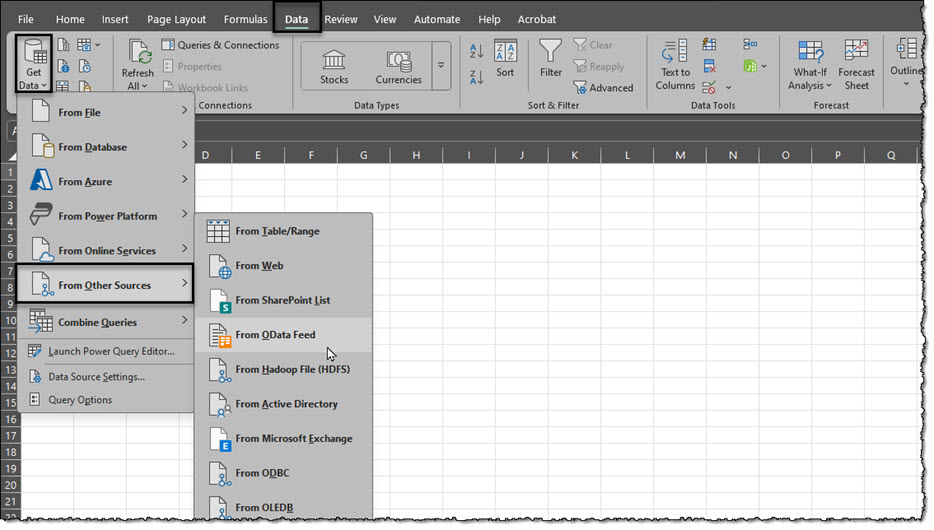
- Click Data in the top menu bar, then navigate to Get Data > From Other Sources > From OData Feed.
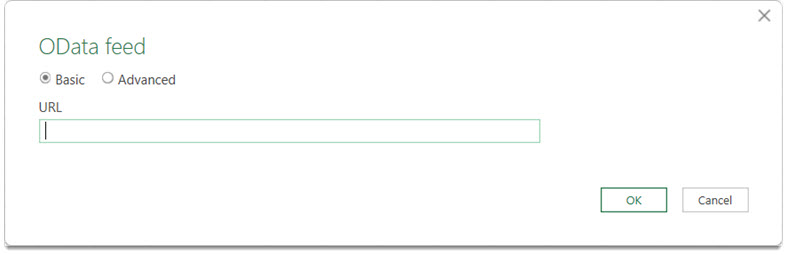
- The OData feed window is displayed, prompting you to enter a URL.
- In ExamDeveloper on the Access Token page, choose a tab in the API links section (On demand or Asynchronous).
- If your project has 2000 or more items (or has many complex items), it is recommended to use asynchronous APIs:
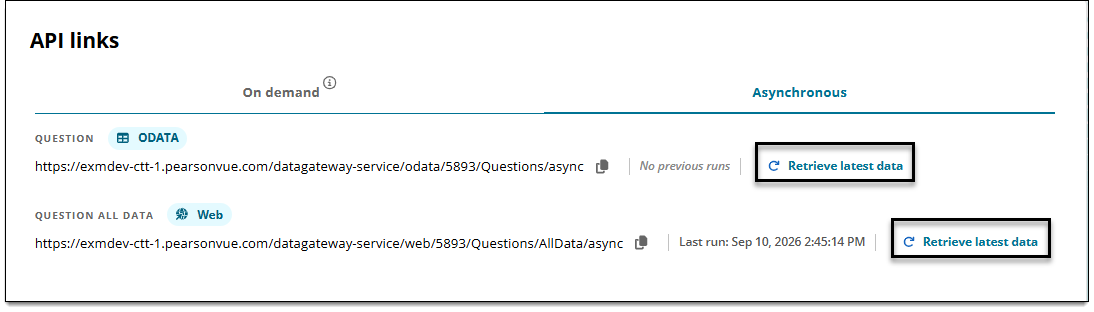
- Click the Asynchronous tab.
- Then click Retrieve data for the desired API. A timestamp is displayed showing the date and time of the last refresh. The data will only be available for 24 hours; after 24 hours you must click Retrieve data again.
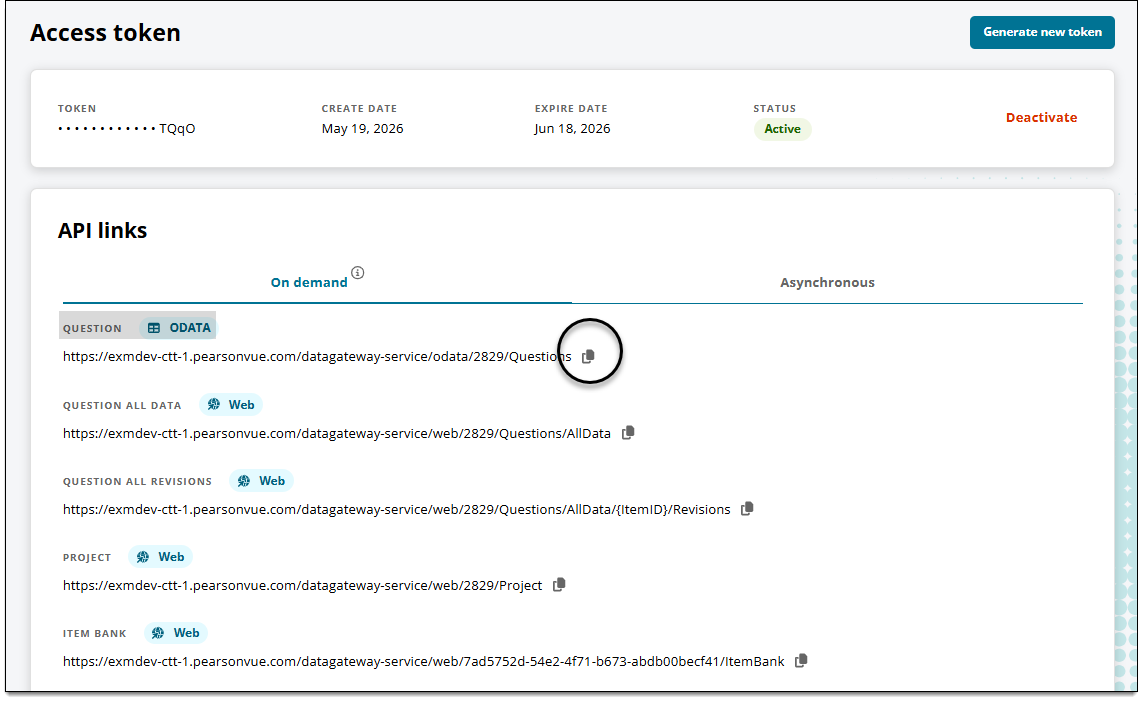
- Click
 for the Question API. (This is your ExamDeveloper project URL.)
- Return to Excel and paste the ExamDeveloper project URL you just copied into the URL field. Leave Basic selected.
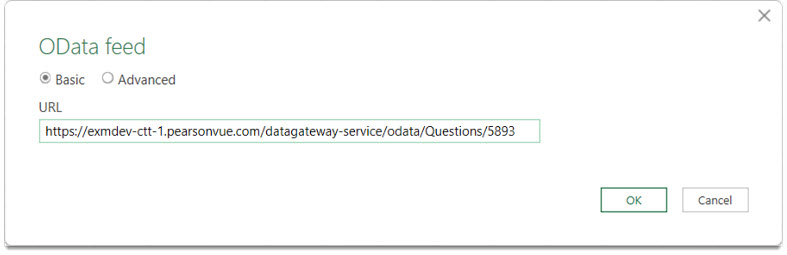
- Click OK.
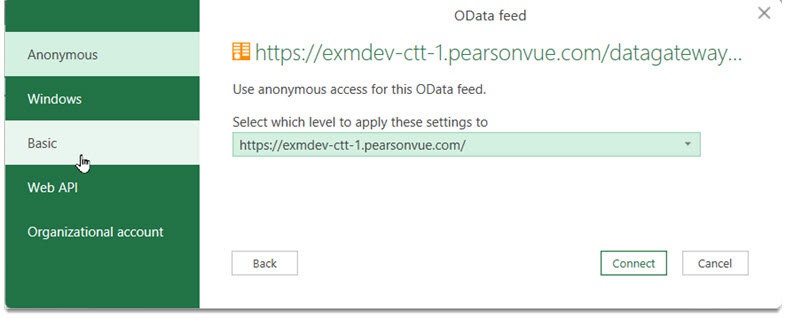
- The project URL should now be shown at the top of the OData feed window. Click the Basic option.
- In the User name field, enter your ExamDeveloper username. In the Password field, paste your ExamDeveloper access token. (You will need to return to the Access Token page in ExamDeveloper to copy the token.)
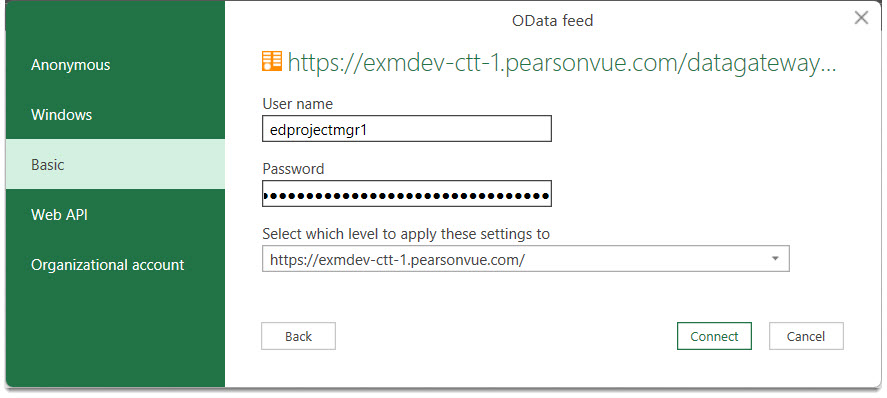
- Click Connect.
- In the Navigator window, click Load or Transform Data.
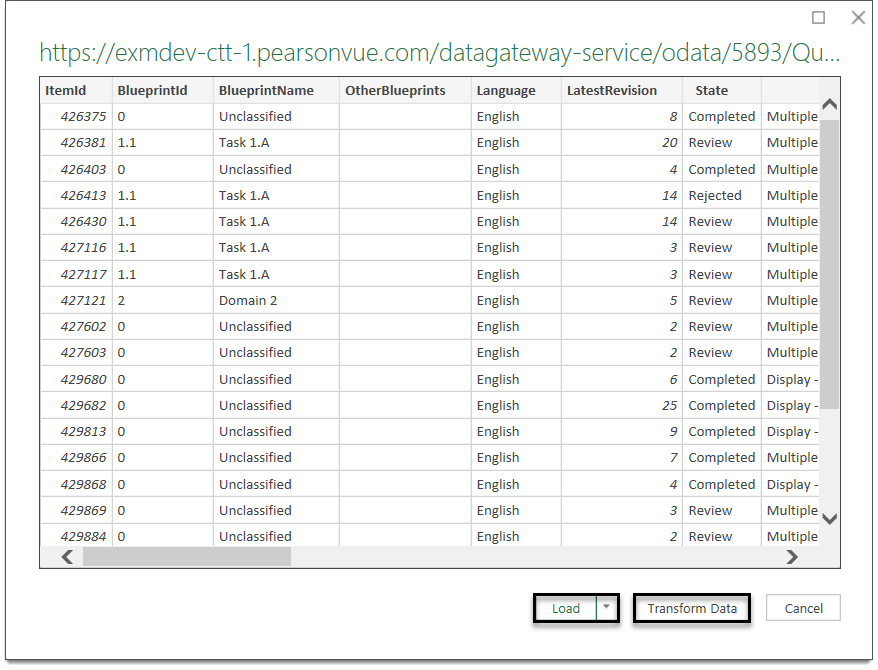
- Transform Data: opens the data in a table in the Power Query Editor.
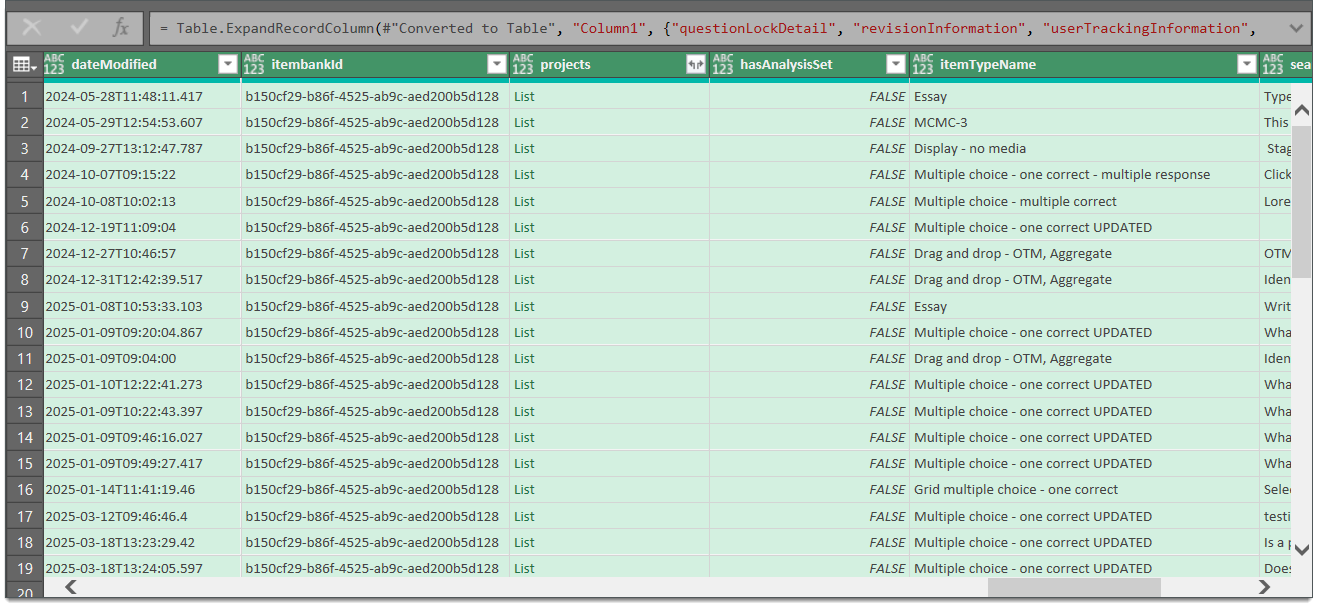
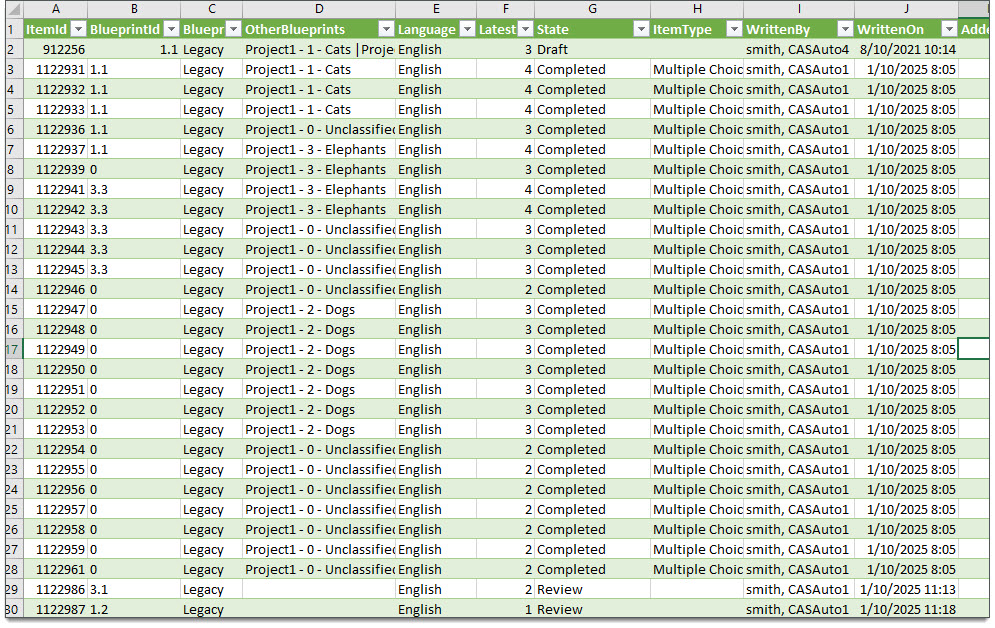
- Load: opens the data in a table in a spreadsheet.
- Transform Data: opens the data in a table in the Power Query Editor.
Refresh your data
Once an ExamDeveloper token is connected to a spreadsheet or dashboard in Excel, the data can be refreshed to populate the most recent project data.
|
However, you must generate a new token every 90 days regardless of your current token's expiration date or status. |
- Open your existing spreadsheet or dashboard in Excel.
- Click Data in the top menu bar.
- Click Refresh all.
- The most recent project data will be populated on all relevant pages or tabs in your existing spreadsheet or dashboard.
A few notes about the data columns:
- Item type refers to the name of the item type template that is in created in ExamDeveloper (Manage > Configuration > Item types). For example, if your project contains several template versions of Multiple Choice - One Correct, the name of the template version is shown in this column, not the item type which is just "Multiple choice - one correct".
- The Blueprint column will show only the most granular level that the item is currently classified under. For example, if the blueprint hierarchy contains the domain "1. Apples" with a sub-domain of "1.A Gala" and the item is classified under "1.A Gala", only "1.A Gala" will show and "1. Apples" will be left out.
- if an item is shared in other projects and has a different blueprint classification within those projects, those classifications will be shown in the Other blueprints column.